


Accidentally spilling water on your MacBook can feel like a heart-stopping moment. One small spill can put its keyboard, trackpad, USB-C ports, battery, logic board, and storage-related components at risk — especially if the device stays powered on or is charged before it has been properly assessed.
Plain water can cause short circuits and corrosion, but water isn’t the only liquid to be worried about. Seawater, coffee, tea, hot chocolate, and fizzy drinks can be even more damaging, because they may leave behind salt, sugar, milk residue, acids, or minerals. These substances can continue affecting your laptop’s internal components even well after the outside seems to be dry.
The best first step is to act quickly and calmly. Power down your MacBook, unplug any accessories, avoid charging it, and treat the spill as a data risk, not just a cleanup task. If you’ve had a water exposure-related incident on a different device, such as a phone, USB stick, external drive, or other storage device, check out our general guide to water-damaged devices.
What Liquid Does Inside a MacBook
The outside of your MacBook can dry fairly quickly — but the real concern is the damage a liquid spill can do beneath the surface. Liquid can enter through the keyboard, trackpad, USB ports, audio jack, hinge area, or small gaps around the chassis. Once it’s inside, it can reach your laptop’s sensitive components like its logic board, battery, and storage-related hardware.
If power keeps moving through wet components, your MacBook could suffer short circuits or immediate electrical damage. And even if that doesn’t happen right away, moisture can slowly start a process of corrosion on metal contacts, ports, and circuit boards. This often isn’t visible at first, but can cause the device to fail hours, days, or even weeks later.
The type of liquid your MacBook was exposed to matters, too. Seawater is especially harmful because salt is highly conductive and corrosive. Coffee, tea, hot chocolate, and fizzy drinks can leave sticky, acidic, or sugary residue behind. These substances can interfere with keys, ports, connectors, and internal components long after the spill appears to have dried.
That’s why a MacBook that still turns on isn’t necessarily safe to use. Residual moisture or residue can continue causing damage, so it’s important to treat any spill as a potential data recovery issue.
Next Steps After a Water Spill
If water or another liquid has spilt on your MacBook, the first few minutes are key. Your goal is to minimise electrical damage, limit how far the liquid spreads, and protect the data stored on the device.
What to Do Immediately
As soon as your MacBook is exposed to liquid, follow these steps:
- Power off your MacBook straight away. Press and hold the power button or Touch ID sensor until the screen goes black. If the screen is already black, hold the button for a few seconds to make sure the device is fully shut down and not just asleep.
- Disconnect the charger and any attached peripherals. Unplug external drives, USB hubs, headphones, docking stations, monitors, and any other accessories you have connected. Power moving through a wet or contaminated system can make the damage worse.
- Gently blot any visible liquid. Use a clean, dry microfibre cloth or absorbent paper towel. Avoid wiping aggressively — this may end up accidentally pushing liquid towards places that weren’t initially affected.
- Move your MacBook to a dry, well-ventilated area. Keep it away from the spill and allow gentle, indirect airflow around the device. Read on to see the ideal drying position for your laptop.
- Do not test or charge it. Don’t turn your MacBook back on to check whether it still works. Wait at least 48 to 72 hours before even considering a brief test, and seek professional advice sooner if you need the data urgently.
- Contact a professional if the data on your laptop is irreplaceable. Repeated testing or DIY repair attempts can make recovery more difficult down the line.
Correct Drying Position
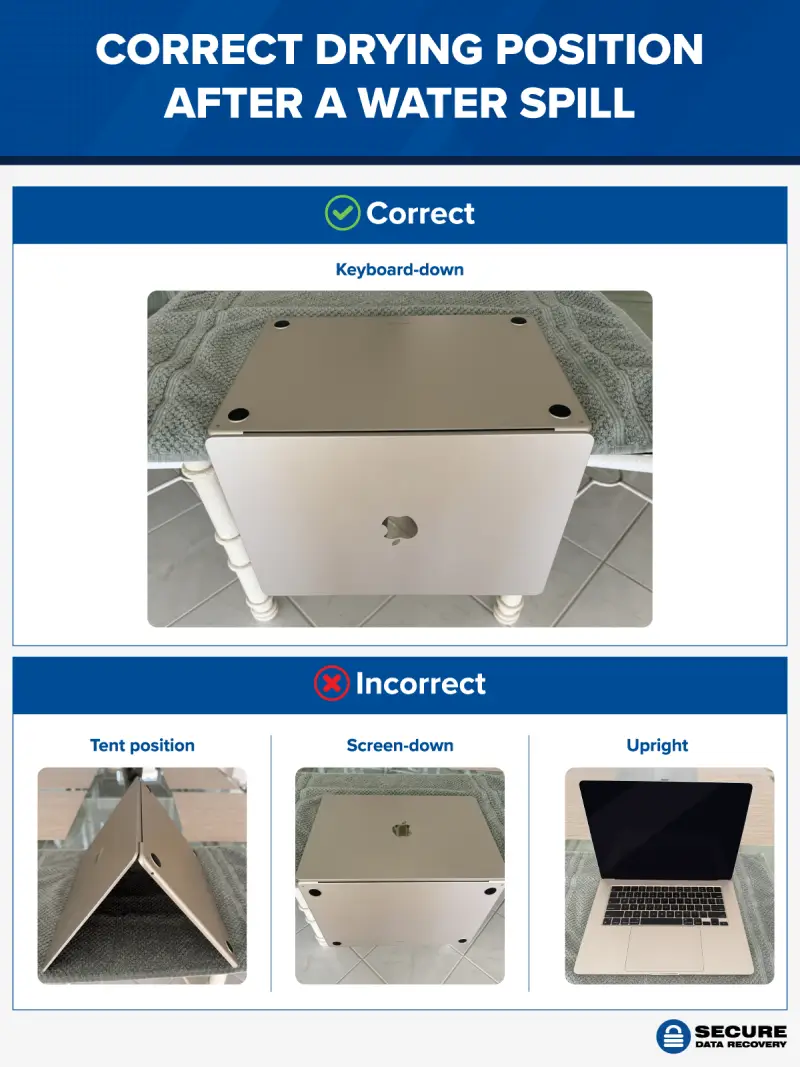
If it’s safe to move your MacBook, place it keyboard-side down on a towel or clean cloth. This can help liquid drain back out the same way it entered, rather than spreading deeper towards the logic board and other sensitive internal components.
Avoid placing your MacBook screen-side down or upright. Also avoid balancing it in a tent position. This advice, while often seen online, can cause liquid to move through the device in a less controlled way, potentially spreading moisture or residue to areas that were previously unaffected.
What Not to Do
Water damage is often a recoverable situation, but some mistakes can make this worse. After a spill:
- Do not turn the MacBook back on to see if it works
- Do not plug it into power
- Do not use a hairdryer, radiator, oven, or direct heat
- Do not blow air into the MacBook, even cool air
- Do not put it in rice
- Do not shake, tap, or press keys repeatedly
- Do not assume it’s safe because the outside looks dry
Sugary, milky, salty, or acidic spills should be treated as especially urgent, because residue can continue damaging components even after the liquid has dried up. For a more comprehensive look at how different liquids affect phones, USB sticks, drives, and other devices, see our guide to water-damaged devices.
Recognising Signs of Water Damage
Not all signs of water damage appear immediately. Your MacBook may seem normal for a few hours, only for symptoms to develop later on as moisture spreads or corrosion starts affecting its internal components.
Look out for warning signs such as:
- Distorted or muffled speaker audio
- USB-C port or charging issues
- Overheating or loud fans, even during light use
- Erratic trackpad behaviour, such as a jumping cursor or delayed response
- Sticky, slow, or unresponsive keys
- Screen condensation, flickering, dimming, or display lines
- Slow startup or boot issues
- Random shutdowns or restarts
You may see some of these issues appear soon after the spill, or several hours or days later. They may also come and go sporadically at first — this may make the damage seem less serious than it is, but intermittent issues after liquid exposure should be treated carefully.
If your MacBook shows any of these symptoms, stop using it and avoid further charging, testing, or troubleshooting. Continuing to use it can worsen internal damage and reduce the chances of recovering your data. The safest next step is to have the device professionally assessed before the problem gets any worse.
Evaluating Your MacBook Safely After Drying
After you’ve powered down your MacBook, kept it unplugged, and given it time to dry, the next step is to carefully evaluate it. It’s important that you approach this stage with caution, as powering the device too soon can undo the benefits of your earlier precautions.
Safely Check Your MacBook
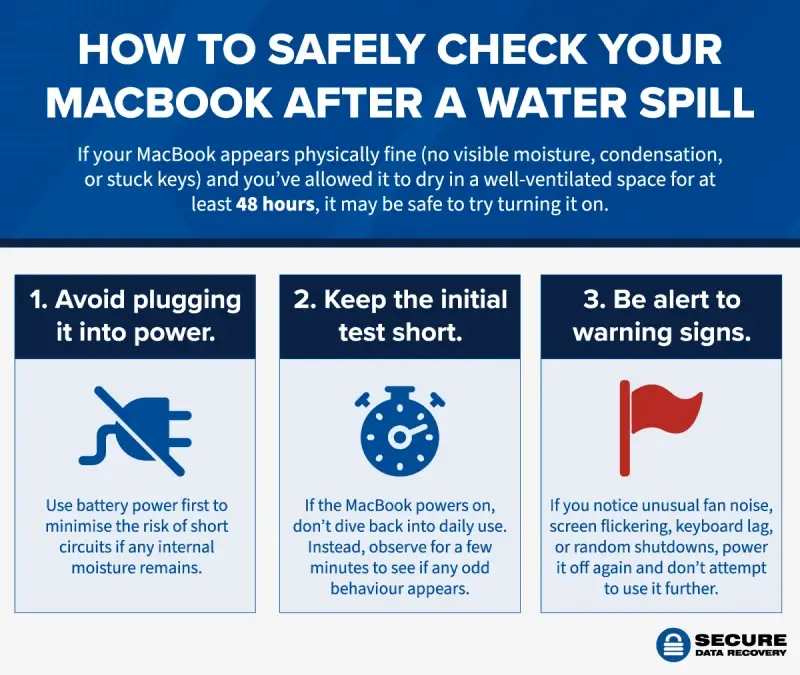
If your MacBook appears physically dry after 48 to 72 hours, shows no screen condensation, and has no obvious signs of sticky keys, port damage, or unusual sounds, a short battery-powered test may be safe.
For your first check, avoid plugging it into power; doing so can increase the risk of electrical damage if there’s still moisture inside.
If it turns on, keep the test short. Don’t resume normal use, run updates, or start extended troubleshooting. Instead, watch for warning signs like flickering, loud fans, keyboard lag, trackpad issues, unexpected shutdowns, or delayed startup.
If Issues Persist
If your MacBook doesn’t turn on, or if it does turn on but behaves strangely, stop testing. Repeatedly restarting, attempting to charge, or running repair software can make the damage worse and may complicate data recovery. At this point, seeking out professional help is the safest next step, especially if the files on your device are important and you don’t have an up-to-date backup at hand.
If It Seems Fine
Even if your MacBook seems to be working as normal, here’s when you want to err on the side of caution: back up your data immediately, starting with your most critical data.
Liquid damage can be delayed, and corrosion may continue developing after the device seems dry. Use Time Machine, cloud storage, or another backup method to protect your files, then monitor your MacBook closely for at least the next few days. If anything feels unusual, stop using it and reach out to a professional as soon as possible.
Can a Water-Damaged MacBook Be Fixed? Recover the Data First
A water-damaged MacBook may be repairable, but this depends on how quickly it was powered off, how much liquid got inside, and which components were affected. For example, a small spill that only reaches the keyboard may be less serious than one that spreads to the logic board, battery, ports, or SSD-related components.
Repair options can vary, too. Apple or an authorised repair provider may replace damaged parts, while some independent specialists may attempt component-level cleaning or repair. However, repair and data recovery aren’t always the same thing. In some cases, your MacBook may be repairable without being able to preserve the original files, especially if key internal components need to be replaced.
This is particularly important with many modern MacBooks. On newer MacBook Air and MacBook Pro models, the internal SSD is often tightly integrated with the logic board rather than being a separate, removable drive. If the logic board fails because of liquid damage, or is replaced before you’re able to back up or recover your data, you may lose access to your files.
This is why you should always prioritise data recovery before repair or replacement when your important files are at stake. If your MacBook shows any signs of liquid damage, don’t panic — your data may be recoverable. The safest approach is to have the device assessed first, so you can get a clear understanding of the best recovery path before carrying out any further work.
Once your data is protected, you can make a more confident decision about whether to repair the MacBook, replace it, or move your recovered files to another device.
Why Seawater Exposure Should Be Treated as Urgent
Seawater exposure is one of the more serious forms of liquid damage. In one recent case, a Secure Data Recovery customer contacted us right after their external hard drive was exposed to seawater and began showing signs of failure.
Fortunately, since the customer reached out to us early, we were able to avert a potential data loss disaster. We safely dried and tested the device, made sure it worked correctly, and then backed up their data as a precaution.
While the details here were specific to the customer, the broader lesson applies to any MacBook or storage device exposed to salt water.
Salt is both conductive and corrosive, which means seawater can quickly interfere with internal electronics and continue damaging components after the device looks dry. Salt residue can remain on your device’s connectors, ports, circuit boards, and storage-related components, increasing the risk of short circuits, corrosion, and delayed failure.
Your best bet in these cases is to stop using the device, avoid charging it, and seek professional advice as soon as possible. For more guidance on seawater, drinks, USB sticks, phones, and other affected storage devices, see our wider guide to water-damaged devices.
When To Contact Secure Data Recovery
Professional help is always your safest option if your MacBook contains important data and there is any sign that liquid damage has reached internal components.
Contact us at Secure Data Recovery if:
- Your MacBook won’t turn on
- Your files are missing or inaccessible
- It was powered on or charged after the spill
- The liquid contained salt, sugar, milk, coffee, tea, hot chocolate, or fizzy drink
- You notice corrosion, sticky keys, port issues, charging problems, or repeated failure
- The data is important and you don’t have working, up-to-date backups available
- You’re considering repair or logic board replacement
If the MacBook works after drying, make sure you back up your important files immediately using Time Machine, cloud backup, or an external drive. Don’t assume the device will keep working normally after liquid exposure — corrosion and residue can continue causing problems later.
At Secure Data Recovery, we can help with Mac data recovery, liquid-damaged device evaluation, SSD and storage media recovery, and cleanroom recovery where needed.
We also provide secure handling of sensitive data, a free diagnostic, and our No Data, No Recovery Fee guarantee.
If your MacBook has been damaged by water, seawater, coffee, tea, hot chocolate, fizzy drink, or another liquid, prioritise the safety of your data. Reach out to us at 0800-102-6925, or start a case online today — we’ll help secure your data.


